

Prepare the first draft with your voice.
Open the patient file and start dictation; describe your findings and plan in your own words. When you finish, stop dictation and review the draft.
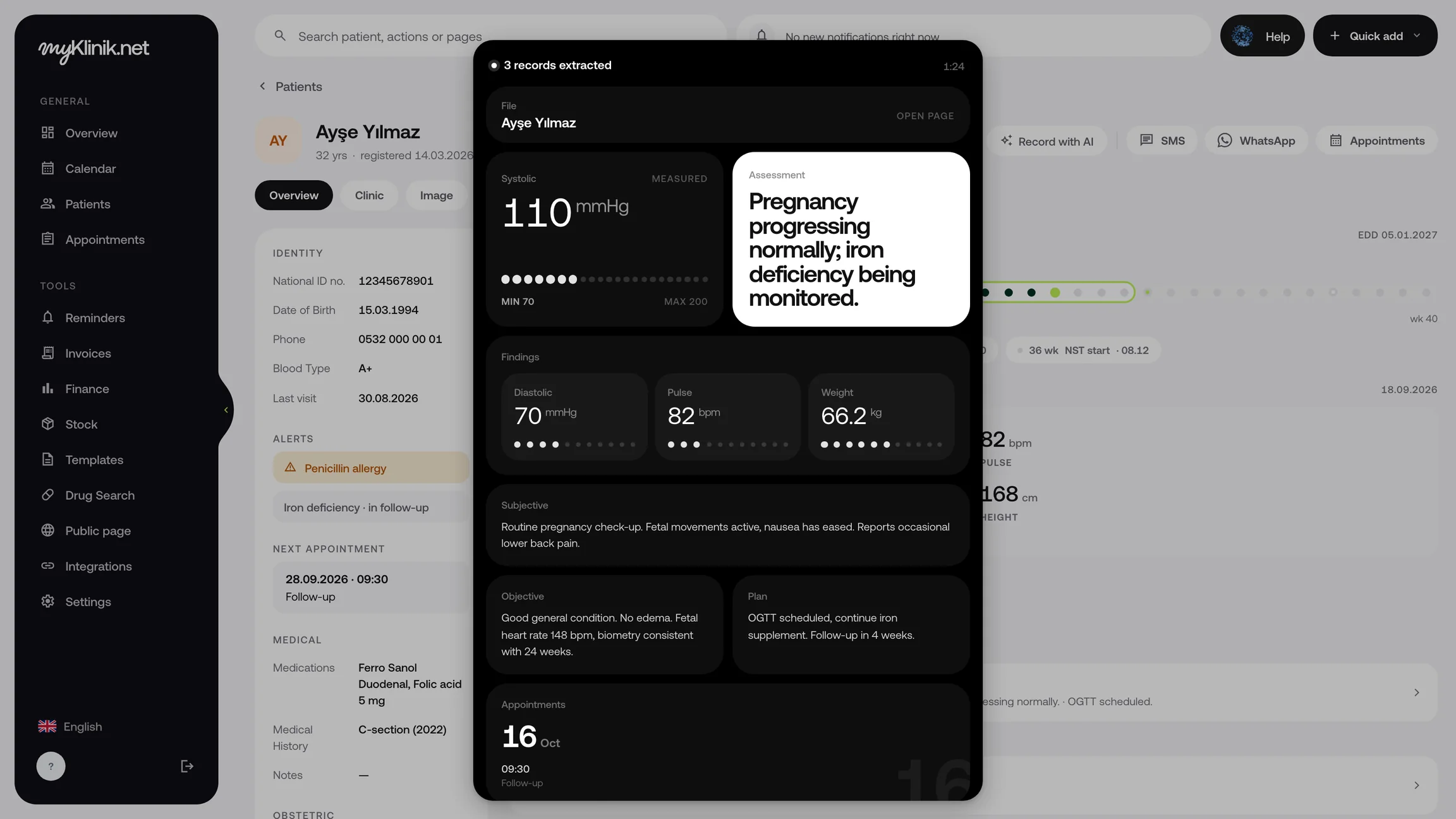
Request a demoDescribe your findings and see drafts of your notes, measurements and appointments together. Check the selected patient and the content, then add the records you approve to the file.
Turn on the microphone and describe your examination findings. When you finish, stop dictation and move on to the draft.
Start with the SOAP draft prepared from your dictation. Read the findings, medication names and numerical values, and correct them where needed.
Check the selected patient and the records. Choose what you want to include, then save with “Add to file”.
Open the patient file and start dictation; describe your findings and plan in your own words. When you finish, stop dictation and review the draft.
Request a demoReview the complaints, findings, assessment and plan in separate fields. Complete or correct the text, then save the note to the patient file.
Explore consultation toolsSay the appointment date and time, then check the draft. Select an existing patient or complete the required details for a new patient, then save.
Edit the draft and complete any missing fields. Exclude records you do not want to save; you decide which information to add to the file.
Review the privacy policyOpen the patient file and start dictation; describe your findings and plan in your own words. When you finish, stop dictation and review the draft.
Request a demo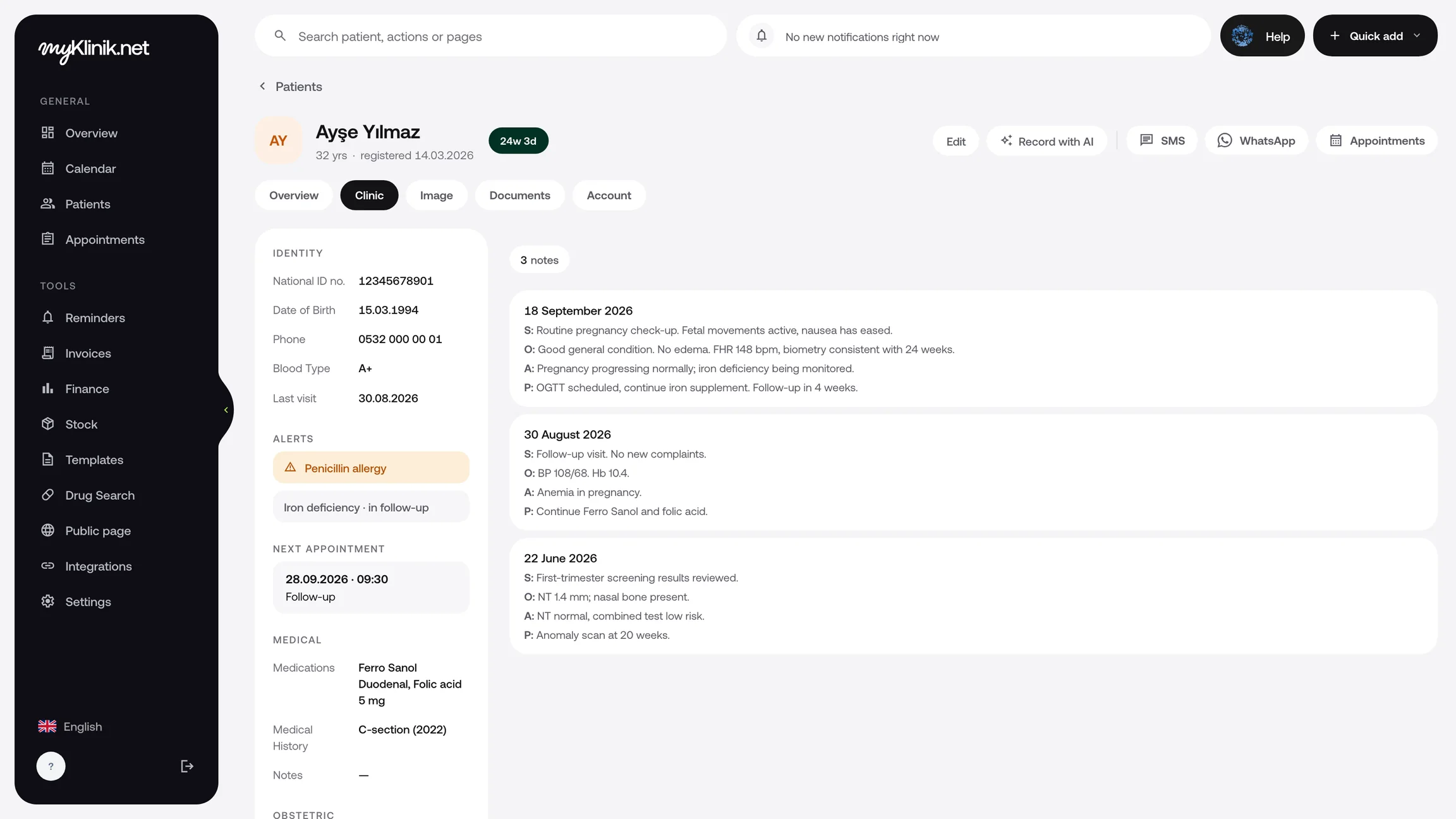
Review the complaints, findings, assessment and plan in separate fields. Complete or correct the text, then save the note to the patient file.
Explore consultation toolsSay the appointment date and time, then check the draft. Select an existing patient or complete the required details for a new patient, then save.
Edit the draft and complete any missing fields. Exclude records you do not want to save; you decide which information to add to the file.
Review the privacy policyOpen your patient's file, start dictation and allow microphone access if prompted.
Describe your examination findings, measurements and plan. Stop dictation when you finish.
Check the selected patient and the contents of each record. Make your corrections and add the selected records to the file.
For your clinic's other needs, explore all features.
Check the selected patient, findings, medication names and numerical values. Correct any missing or incorrect fields and save only the records you want to add.
No. First review the draft notes, measurements and appointments. Make any corrections, then add your selected records to the file.
Say the appointment date and time, then review the draft. Select an existing patient or complete the required details for a new patient, then save.