

See each clinician's day side by side.
Plan appointments in columns for each clinician and track their status in the calendar. Create recurring appointment series and edit dates from the calendar when plans change.
Request a demoView clinicians' calendars side by side and review online requests. Send reminders and check each patient's confirmation or cancellation in their appointment record.
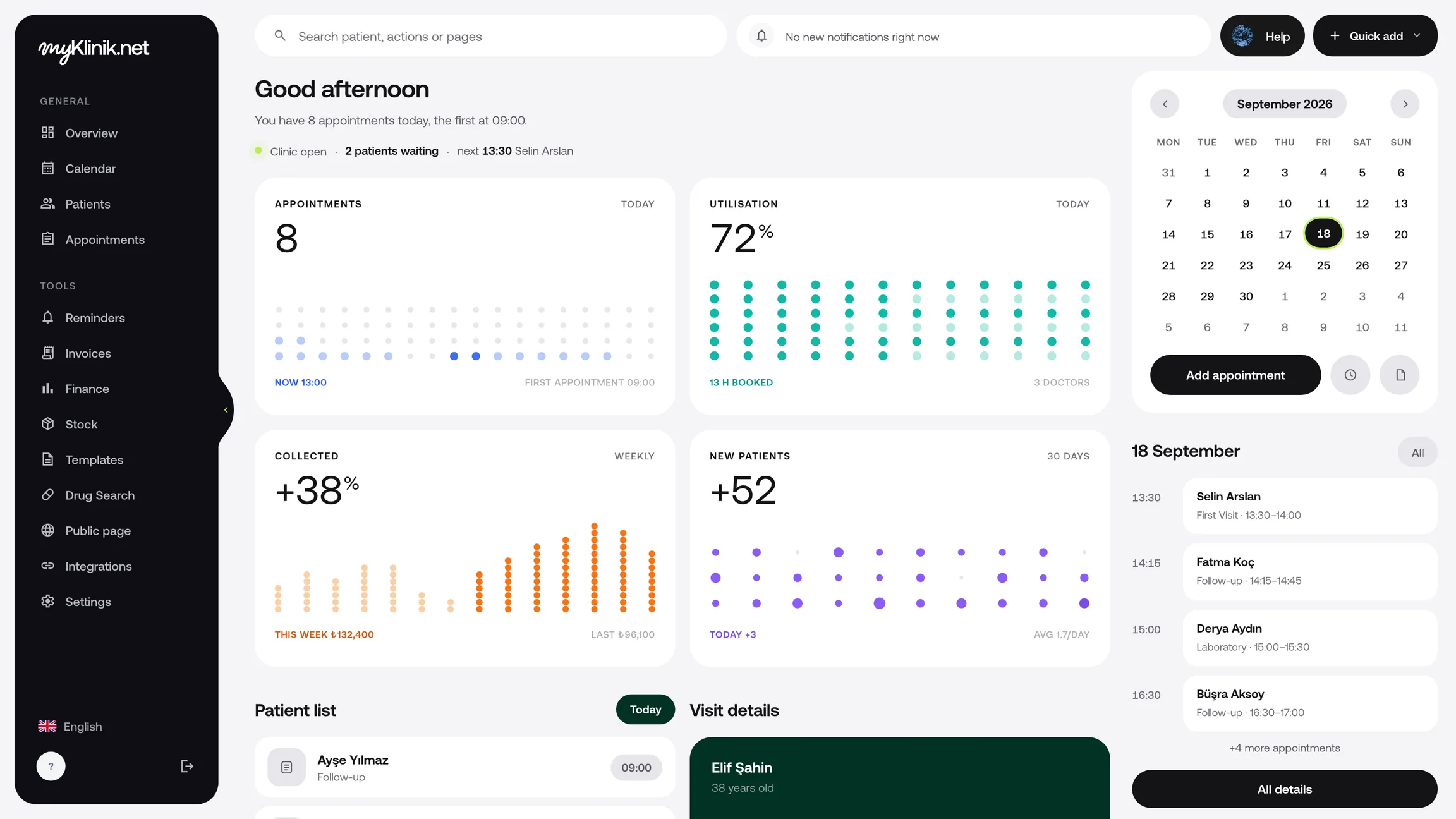
View clinicians' appointments side by side. Switch between day, week and month views to find a suitable time.
Your patient confirms or cancels through the link in their text reminder. You can check their response in the appointment record.
See online appointments awaiting approval on the Appointments screen. Accept the request or decline it if the appointment is not suitable.
Plan appointments in columns for each clinician and track their status in the calendar. Create recurring appointment series and edit dates from the calendar when plans change.
Request a demoLet your patient choose a suitable time and verify their phone number with a text message code. Approve requests individually or enable automatic approval in your clinic settings.
Explore your clinician websiteEnable automatic reminders so your patient can confirm or cancel through the text message link. Check the response in the appointment record and plan around the newly available slot.
Your patient can use the link to request another date and time. Their existing appointment stays in place until you review the request.
Plan appointments in columns for each clinician and track their status in the calendar. Create recurring appointment series and edit dates from the calendar when plans change.
Request a demoLet your patient choose a suitable time and verify their phone number with a text message code. Approve requests individually or enable automatic approval in your clinic settings.
Explore your clinician websiteEnable automatic reminders so your patient can confirm or cancel through the text message link. Check the response in the appointment record and plan around the newly available slot.
Your patient can use the link to request another date and time. Their existing appointment stays in place until you review the request.
Set clinicians' working days and appointment durations. If you have multiple branches, configure their hours separately.
Set up text messaging and enable automatic appointment reminders. Track the patient's confirmation or cancellation in the appointment record.
Publish your clinician website so patients can see available times. Choose whether requests need your approval or are approved automatically.
Explore patient records and consultation workflows too: See all features.
Your patient selects an available time and verifies their phone number with an SMS code. You can confirm requests individually or enable automatic confirmation in your clinic’s settings.
Connect your SMS service and enable automatic reminders. Your patient can confirm or cancel using the link in the message; check their response in the appointment record.
No. Your patient can request a different date and time, but the existing appointment time stays unchanged until you review the request.